Purpose
To monitor today’s incoming online orders and track their statuses efficiently, ensuring timely fulfillment and SLA compliance across all online marketplaces.
Prerequisites
User has access to E-Omni
Method 1: View Today’s Orders from Dashboard
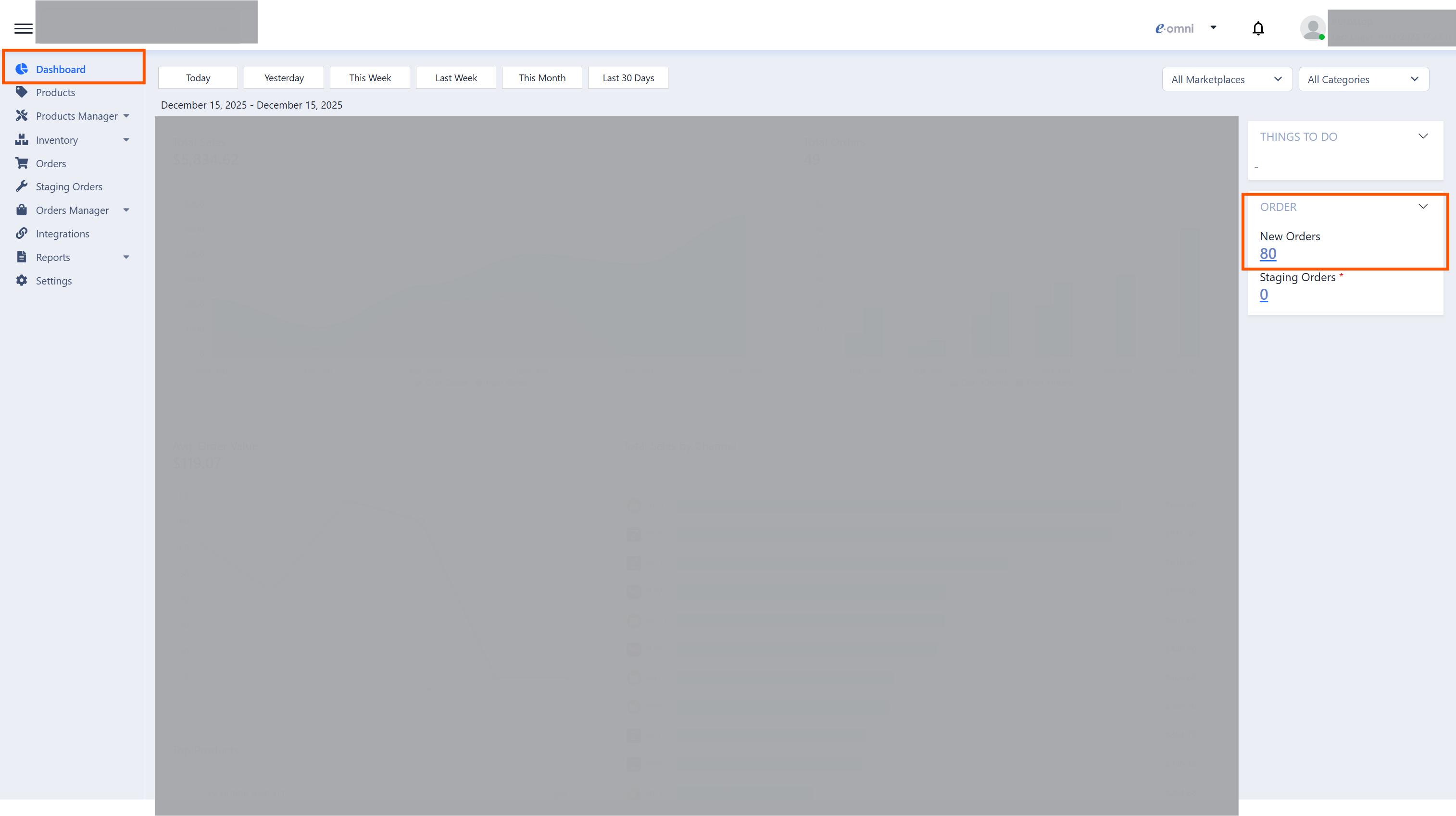
Dashboard Orders (Today’s New Orders)
Where to go
Navigate to E-Omni > Dashboard
Steps
Locate the Order section on the right side of the dashboard.
Review today’s number of new orders.
Click on the order count number.
System redirects to Orders (Summarized View) for detailed review.
⚡ Quick Tip: Use this as your first daily check to get a fast pulse on order volume.
Method 2: Orders (Summarized View)
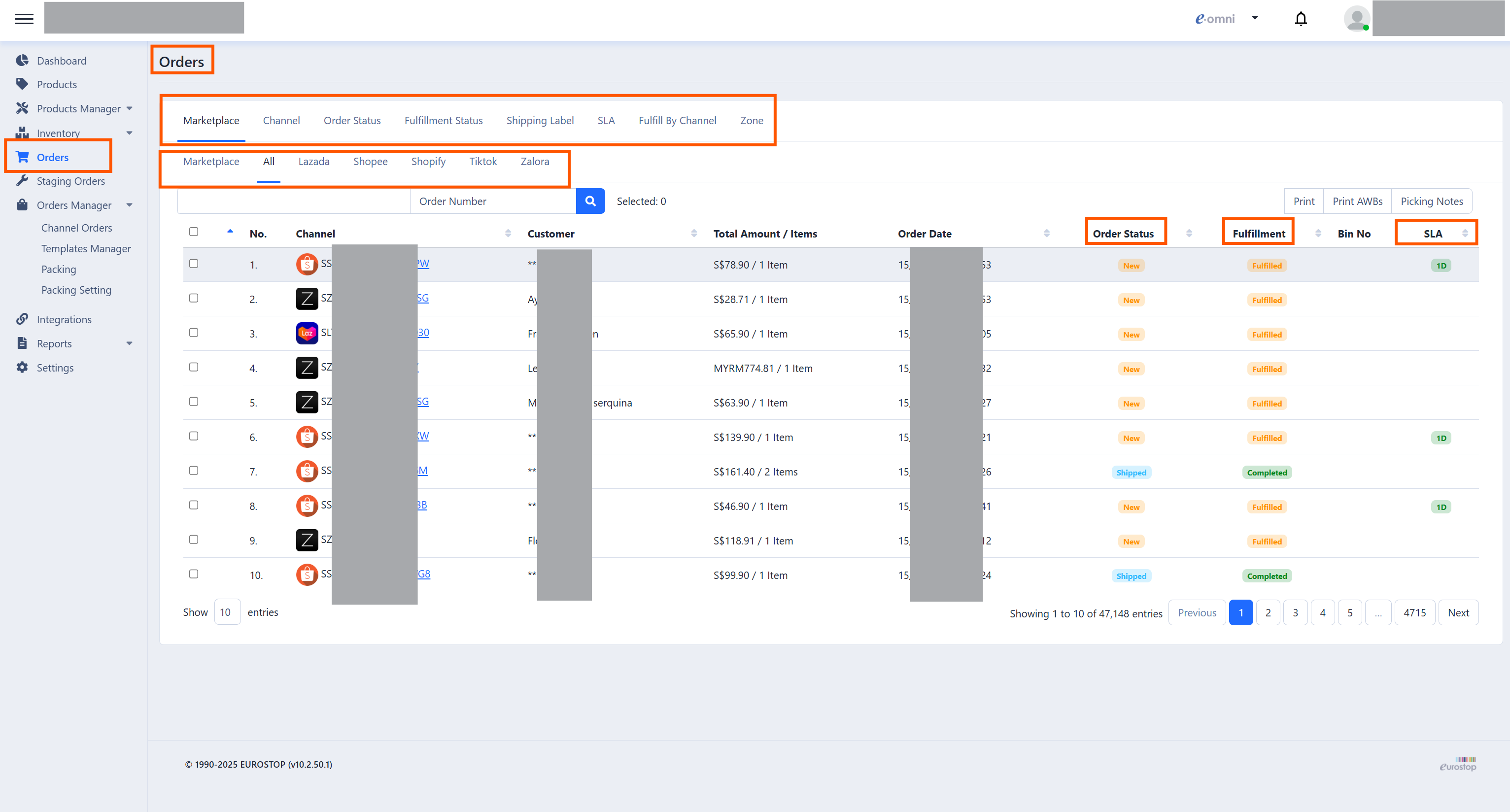
Orders – Summarized View
Where to go
Navigate to E-Omni > Orders
Steps
Click the expand arrow to open Filter & Sorting options.
Apply filters as needed:
Marketplace – Select platform (Shopee, Lazada, etc.)
Channel – Select specific store ID or channel name
Order Status – New, Packed, Shipped, Cancelled
Fulfillment Status – Identify unfulfilled orders
Shipping Label – Printed or Unprinted AWBs
SLA (Service Level Agreement) –
< 1 Day1–3 Days> 3 Days
Order Number / Date – Search by order number or filter by date
Click into an order to view:
Customer details (if the marketplace platform allow linking)
Ordered items
Sales quantities & amounts
Returned items (if any)
⚡ Quick Tip: Prioritize orders nearing SLA deadlines to avoid marketplace penalties.
Notes & Best Practices
Dashboard is best for quick daily checks
Orders (Summarized View) is ideal for detailed operational review
Always monitor SLA status to prevent late fulfillment issues
Was this article helpful?
That’s Great!
Thank you for your feedback
Sorry! We couldn't be helpful
Thank you for your feedback
Feedback sent
We appreciate your effort and will try to fix the article