Purpose
Prerequisites
Access to Master Setup and Wholesale/B2B Module.
SKU and pricing data prepared for import.
Customer data with assigned price book.
Steps
Step 1. Set Up Price Book
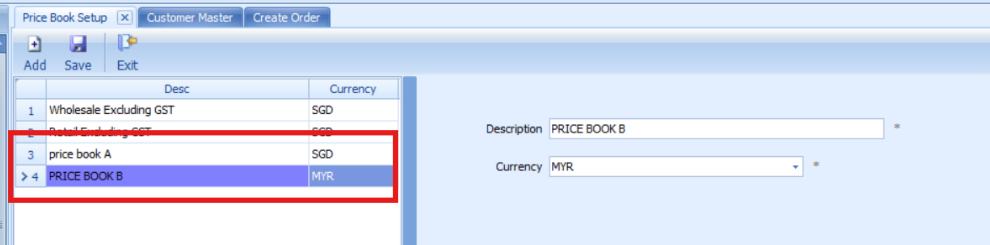
Navigate to Wholesale/B2B Module > Price Book Setup.
Click Add
Enter the Description (Price Book Name)
Select the Currency
Click Save
Step 2. Import Price Book Data
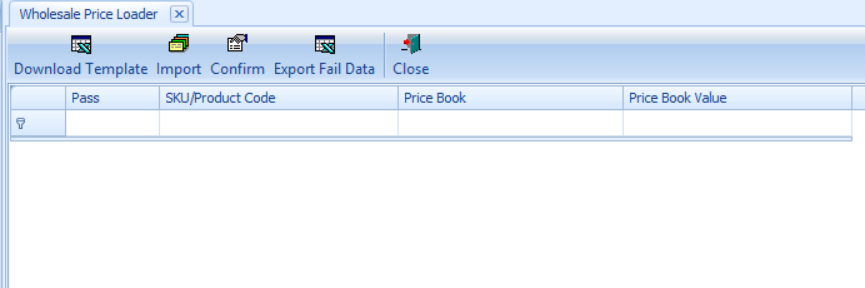
- Navigate to Master Setup > Data Loader > Wholesale Price Loader.
- Download the template
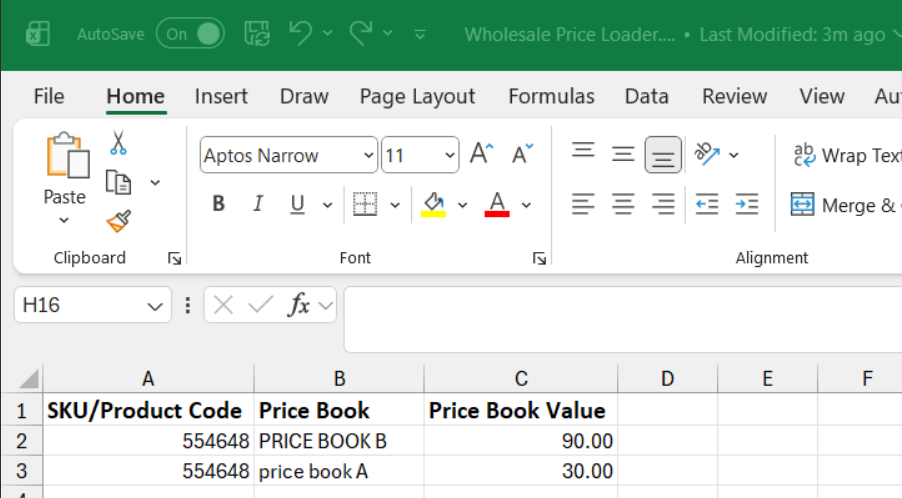
- Populate the file with the following fields:
- SKU/Product Code
- Price Book
- Price Book Value
Import the completed file.
Confirm the import process.
Step 3. Assign Price Book to Customer
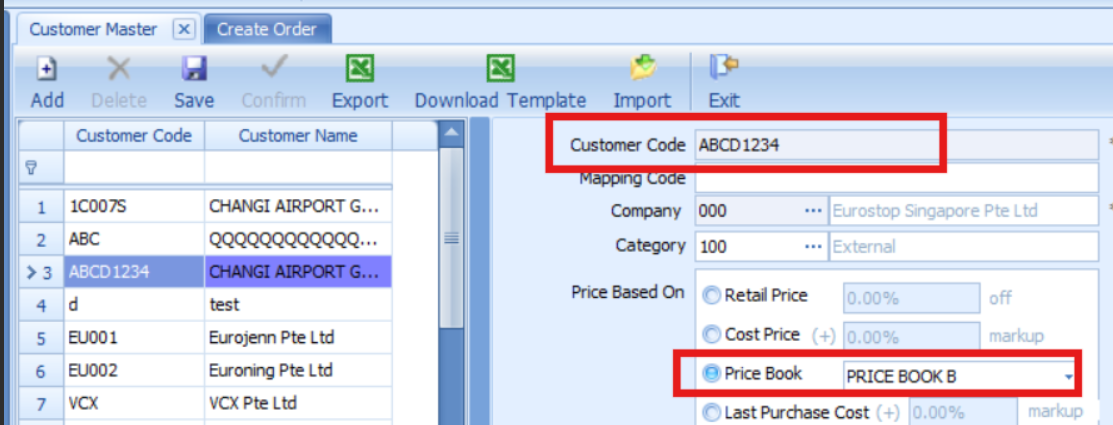
Navigate to Wholesale/B2B Module > Customer Master.
Search the customer, at Price Based on to assign the required Price Book Name.
Save the changes.
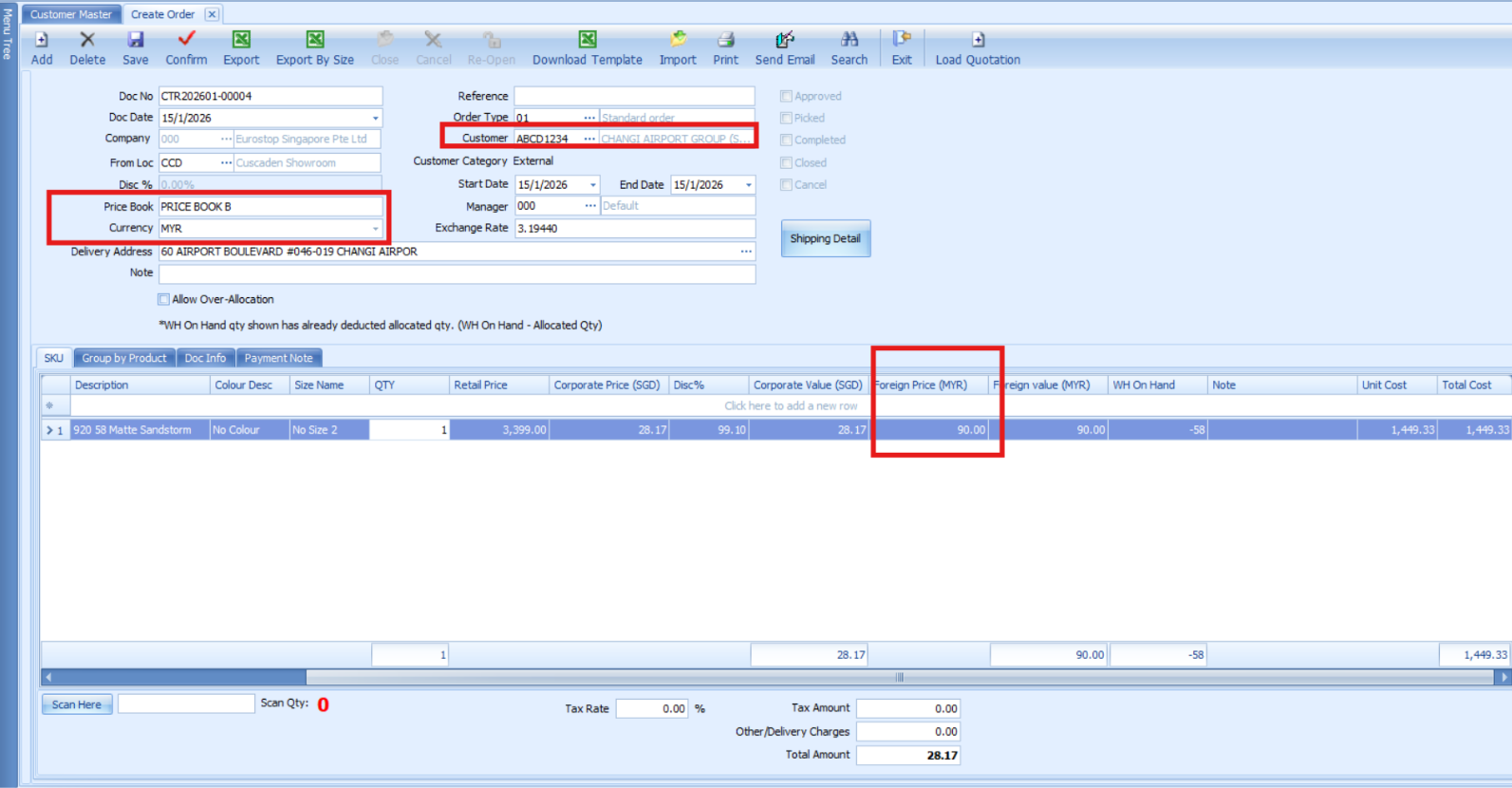
Step 4. Verify in Sales Order
Create a sales order for a wholesale customer.
Confirm that the system automatically applies the correct pricing based on the assigned Price Book.
Notes / Tips
Ensure the Price Book Name is consistent across setup, import file, and customer assignment.
Incorrect or missing SKU codes will cause the price import to fail.
Always verify pricing in a test sales order after setup to ensure accuracy.
Was this article helpful?
That’s Great!
Thank you for your feedback
Sorry! We couldn't be helpful
Thank you for your feedback
Feedback sent
We appreciate your effort and will try to fix the article